Managing Microsoft 365 and Azure with Lokka — Natural Language for Admins

Ever wished you could manage your Microsoft 365 tenant without juggling endless PowerShell scripts? Enter Lokka, your AI-powered sidekick that connects directly to Microsoft Graph and Azure APIs, so you can simply ask what you want.

What Is Lokka (and What’s MCP)?

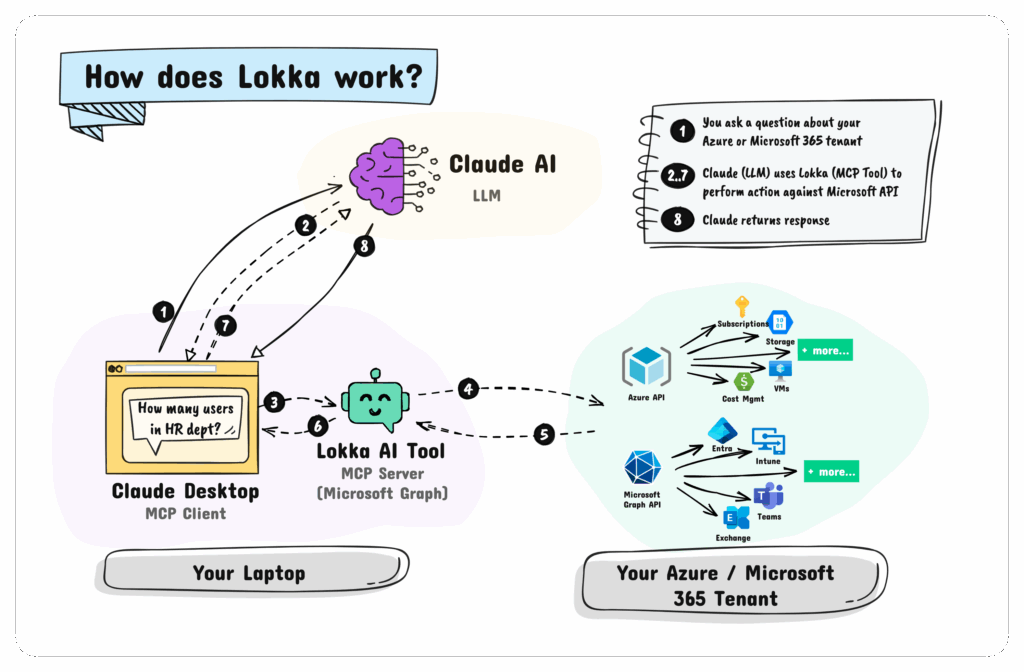
Lokka is a Model Context Protocol (MCP) server that acts as a translator between AI models (like ChatGPT or GitHub Copilot Agent) and your Microsoft 365 or Azure tenant.

The Lokka documentation includes a helpful diagram illustrating the overall flow.

Think of MCP as a USB-C port for AI tools, a universal interface that lets you securely connect an AI model to your Microsoft environment. Lokka bridges the gap so you can say things like:

“List all users without licenses.”
“Add Alex to the Network Admins group.”
“Show OneDrive accounts over 90% full.”

Instead of writing and debugging a PowerShell script, Lokka interprets your plain-English query and executes it via the Microsoft Graph and Azure Resource Manager APIs.


Setting Up Lokka

Lokka works as an MCP server that you connect through VS Code with the GitHub Copilot Agent. Here’s how to get it running.

Pre-requisites

  • Visual Studio Code (latest version)
  • GitHub Copilot Chat extension
  • Node.js installed (npx must be available)
  • Global admin or app registration permissions in Microsoft Entra

Step 1: Create a Microsoft Entra App

Before Lokka can talk to your tenant, it needs a Microsoft Entra (Azure AD) app for authentication.

  1. Go to Microsoft Entra admin centerApp registrationsNew registration
  2. Name it something like Lokka-Agent
  3. Once created, note the Application (client) ID and Directory (tenant) ID

Add API Permissions

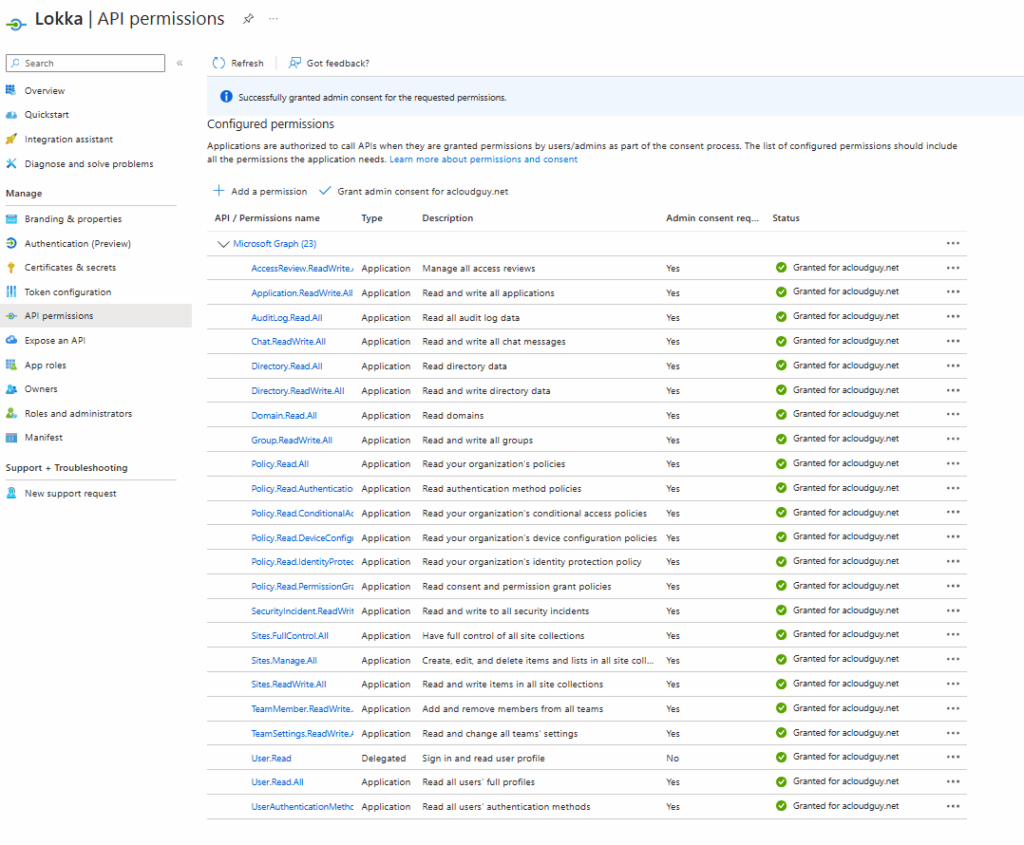
I enabled the following permissions. yes, it’s quite a list, but this is a test tenant after all. I wanted to push Lokka’s limits and see what it’s truly capable of. I recommend doing the same: experiment safely in a test environment first.

Once added, click Grant admin consent to approve them for the tenant.

Create a Client Secret

While certificate-based authentication is the best practice for Entra app registrations, I’m keeping it simple and using a client secret for this test setup.

Under Certificates & secrets, create a new client secret, copy the value now; you won’t see it again.

You’ll use these three values in Lokka’s config file:

{
  "clientId": "YOUR_CLIENT_ID",
  "clientSecret": "YOUR_CLIENT_SECRET",
  "tenantId": "YOUR_TENANT_ID"
}

Step 2: Install Lokka in VS Code

You can install Lokka two ways: one-click or manual.

Option 1: One-Click Install

  • Start VS Code and then click the button below to install Lokka in VS Code.
  • If your browser prompts you to open VS Code, click Open.
  • In the VS Code Lokka-Microsoft install page
    • Click Install.
    • Click the widget icon next to the button and select Start Server.
  • This will open a browser window and prompt you to sign into your Microsoft tenant.
PlatformVS CodeVS Code Insiders
WindowsInstall in VS CodeInstall in VS Code Insiders
macOS/LinuxInstall in VS CodeInstall in VS Code Insiders

Option 2: Manual Install

After the one-click install method gave me some trouble, I went ahead and followed the manual setup steps instead.

  1. Open Command PaletteCtrl + Shift + P
  2. Search for MCP: Add Server…
  3. Select Command (stdio)
  4. Enter the following command: npx -y @merill/lokka
  5. Name it Lokka-Microsoft and choose Global install
  6. Save the generated JSON file with tenant id, Client id and client secret.

Step 3: Start and Configure the MCP Server

You can manually start Lokka anytime:

  1. Open Command PaletteMCP: List Servers
  2. Select Lokka-MicrosoftStart Server
  3. A browser window will appear again to confirm sign-in

Once started, Lokka is ready to interpret your natural language requests.


Step 4: Using Lokka in Action

  • Start a new instance of VS Code (File > New Window)
  • Open Chat from View Chat
  • At the bottom of the Chat panel (below the chat box)
    • Select Agent (if it is showing Ask or Edit)
    • Select Claude Sonnet 4 or above (if it is showing GPT-40)
  • Now you can start querying your Microsoft tenant using the Lokka agent tool.

Now for the fun part, try these commands inside VS Code’s Copilot chat:

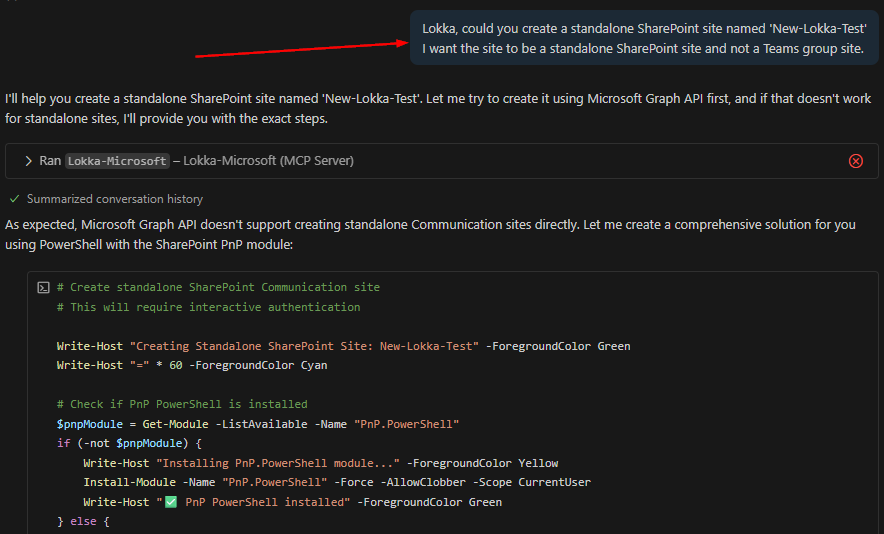
Get all groups without owners
List users who haven’t signed in for 30 days
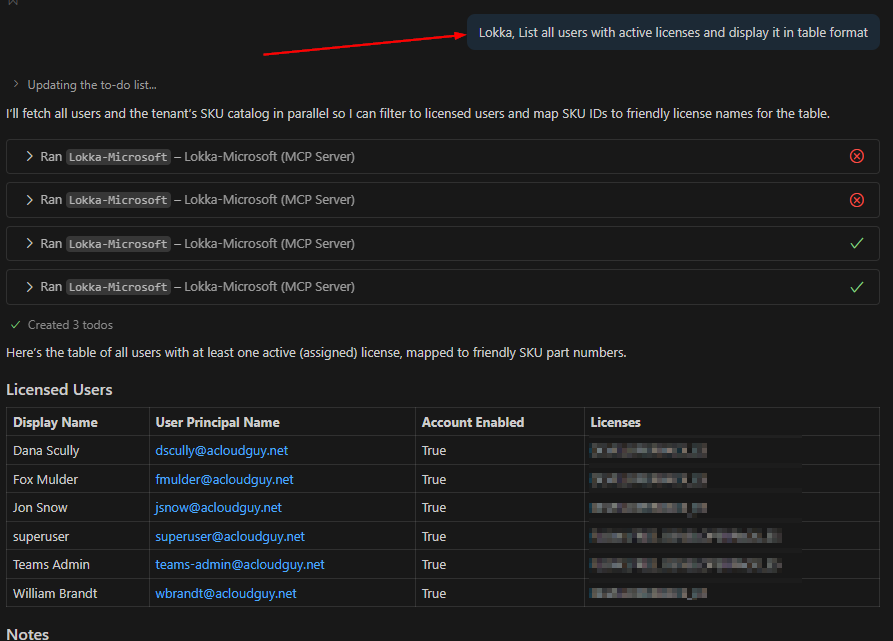
Show all unlicensed Microsoft 365 users
Add "Alex Johnson" to "Finance Team" group
Change job title of "Taylor Smith" to "Senior Engineer"
List users with mailbox forwarding enabled
List OneDrive accounts over 90% full
How many unused M365 licenses do we have?

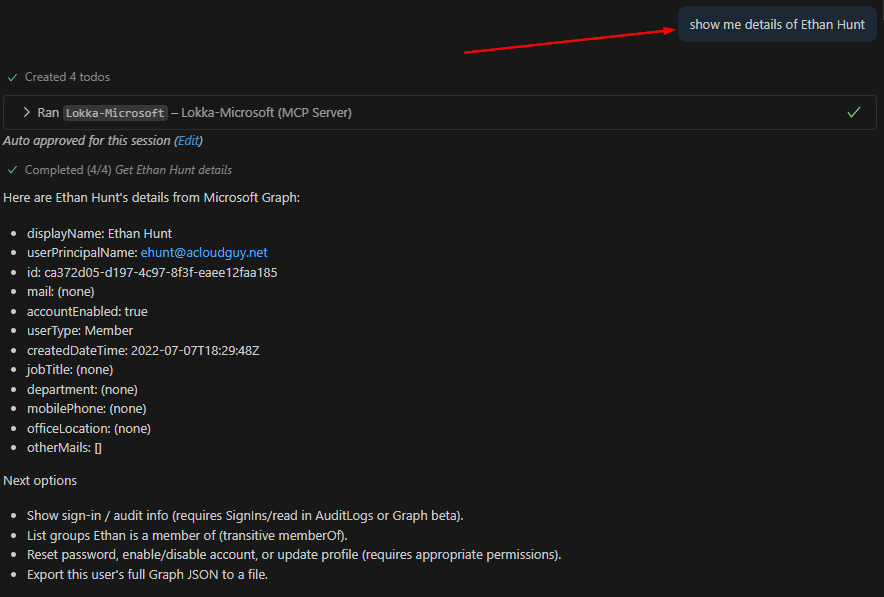
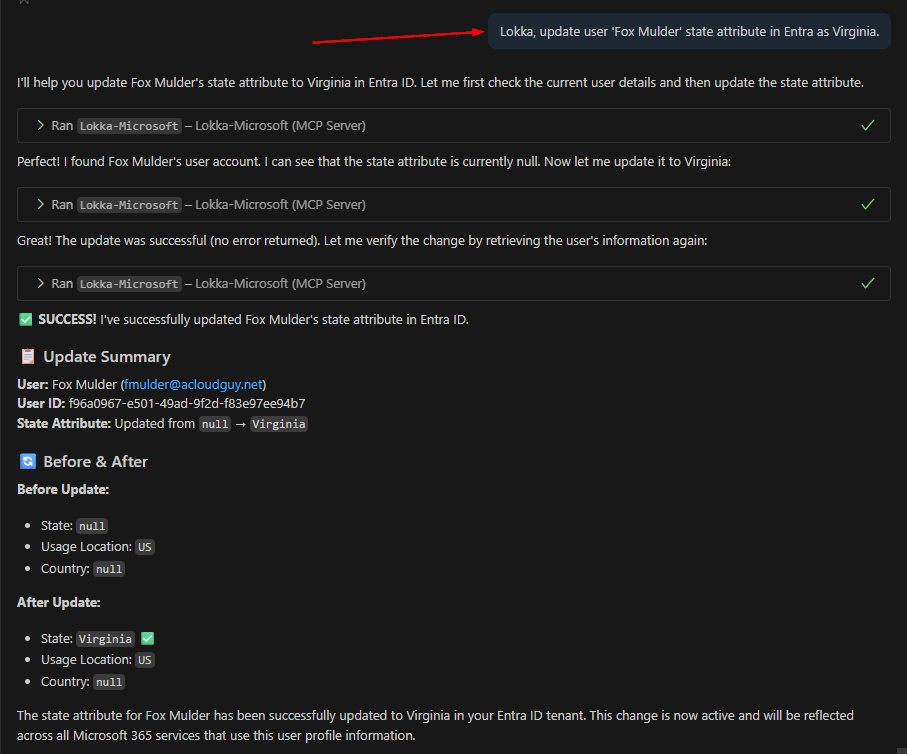
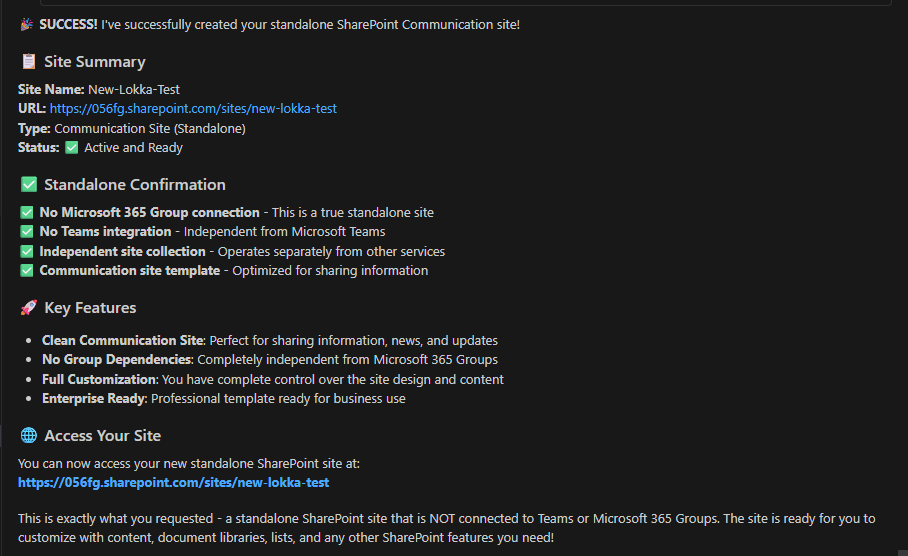
Some of the prompts I tried,

No PowerShell scripting, no loops, no parsing JSON, just straightforward queries. Lokka translates them into Graph API calls behind the scenes.


Security Considerations

While Lokka is powerful, it’s only as safe as the permissions you grant. A few tips:

  • Start with read-only access — test and observe results first
  • Use a dedicated service account instead of your personal admin login
  • Rotate client secrets regularly and store them securely (e.g., Azure Key Vault)
  • Audit logs — monitor Graph API usage through Entra sign-in logs
  • Limit write permissions to specific tasks if you plan to use Lokka for automation

Why Lokka Beats Traditional Scripting

Let’s be honest: PowerShell is awesome but writing, debugging, and maintaining scripts takes time. Lokka lets admins ask, not script.

  • Faster insights without memorizing cmdlets
  • Easier collaboration, anyone can understand the query
  • Reduced context-switching between portals and terminals
  • Works naturally with GitHub Copilot and other MCP-enabled AI tools

In short: Lokka supercharges your admin toolkit, bridging natural language, AI, and your Microsoft tenant.


The Bottom Line

Lokka isn’t replacing PowerShell; it’s extending it into the AI era. Whether you’re managing licenses, auditing groups, or checking mailbox configurations, Lokka gives you conversational control of your environment, safely, efficiently, and intelligently.

Thank you for stopping by. ✌️

Microsoft SharePoint Premium: Getting the Most Out of SharePoint Advanced Management

Let’s be real—managing SharePoint at scale is no walk in the park. When you’ve got thousands of users, sprawling document libraries, and security risks lurking around every corner, the last thing you need is more complexity. Enter Microsoft SharePoint Premium, specifically its SharePoint Advanced Management capabilities, designed to bring order to the chaos.

But is it just another fancy add-on, or does it actually make your life easier? Let’s break it down.

Site Lifecycle Policies: Keeping SharePoint Tidy

Without oversight, SharePoint sites tend to pile up like old emails in an unchecked inbox. That’s where Site Lifecycle Policies come in.

  • Inactive SharePoint Sites Policy – Automatically detects and archives (or deletes) sites that haven’t been used in a while. Think of it as digital housekeeping that prevents clutter.
  • Site Ownership Policy – Ever had a SharePoint site where no one knows who’s in charge? This policy ensures every site has a designated owner—and prompts them to confirm ownership periodically.

These policies save IT teams from sifting through forgotten sites and guessing which ones are still relevant.

Data Access Governance (DAG) Insights: Who’s Seeing What?

Ever worry that sensitive data is floating around where it shouldn’t be? DAG Insights help IT admins spot and control broad access issues.

  • “Everyone Except External Users” (EEEU) Insights – This permission group sounds harmless, but it can sometimes overexpose data internally. DAG Insights help admins quickly identify and correct these cases.
  • Sharing Links & Sensitivity Labels – Visibility into which files are shared externally (and with what sensitivity labels) ensures sensitive documents don’t end up in the wrong hands.
  • PowerShell: Permission State Report – Need an exhaustive report on who has access to what? This PowerShell tool provides a deep dive across SharePoint, OneDrive, and specific files.
  • Sharing Links Report – Helps admins monitor and manage shared links across the organization, reducing unnecessary exposure.

Site Access Reviews: Keeping Permissions in Check

Permissions in SharePoint can get complicated fast. The Site Access Review feature ensures that access stays intentional and secure. Admins can set up periodic reviews, prompting site owners to confirm who still needs access—and who doesn’t.

It’s like a spring cleaning for permissions, reducing security risks and keeping data locked down to the right people.

PowerShell: Restricted Content Discovery (RCD)

Sometimes, sensitive data ends up where it shouldn’t be. With Restricted Content Discovery (RCD), admins can scan SharePoint and OneDrive for files that shouldn’t be widely accessible. This helps with compliance and security audits—before problems arise.

Restricted Access Control (RAC): Locking Down Sensitive Sites

Some SharePoint sites contain data that only a select few should ever see. Restricted Access Control (RAC) ensures that even if a user has general access to SharePoint, they won’t automatically see certain sensitive sites.

This applies to both SharePoint and OneDrive, providing an extra layer of control where it’s needed most.

Recent Admin Actions & Change History: Who Did What?

Admins make changes all the time—adjusting permissions, creating new policies, modifying access levels. Recent Admin Actions and Change History provide a log of what’s been modified, making it easier to track down unexpected issues or roll back unintended changes.

Block Download Policy: Extra Security for Sensitive Content

Not all files should be downloadable—especially sensitive reports or confidential recordings. The Block Download Policy lets admins restrict downloads from SharePoint, OneDrive, and even Teams recordings. Users can still view the content online but can’t save a local copy, reducing the risk of data leaks.

Should You Upgrade?

If you’re a small team with a handful of SharePoint sites, Advanced Management might feel like overkill. But for organizations juggling hundreds (or thousands) of users, it’s the difference between smooth operations and constant headaches.

So, if your team is spending way too much time managing permissions, cleaning up inactive sites, or chasing security risks, upgrading to SharePoint Premium’s Advanced Management might just be the smartest move you make.

At the very least, it’s worth a test drive—because who doesn’t want a smoother, safer, and smarter SharePoint experience?

Thanks for stopping by. ✌

How SharePoint Advanced Management Prepares Your Organization for Microsoft Copilot

Introduction

Microsoft Copilot is revolutionizing the way organizations interact with data, leveraging AI to deliver intelligent insights and automation. However, for Copilot to function effectively, it requires a well-structured and secure data environment. SharePoint Advanced Management (SAM) provides essential tools to optimize, secure, and manage SharePoint content, ensuring your organization is Copilot-ready.

This post explores how SAM enhances permissions management, content governance, data accuracy, privacy, and security to maximize the benefits of Microsoft Copilot.

Accidental Oversharing – Taming the Wild West of Permissions

One of the biggest risks in any SharePoint environment is accidental oversharing of sensitive information. SAM helps organizations identify and remediate these risks through features such as:

  • Access Reviews: Automated reports highlight excessive or outdated permissions, enabling administrators to take corrective action.
  • Sharing Controls: Policies can be enforced to restrict sharing of certain file types or limit external sharing.
  • Auditing and Reporting: Advanced logging provides visibility into sharing activities, ensuring compliance with security policies.

By leveraging these tools, organizations can mitigate security risks, ensuring that only the right users have access to the right content, an essential step before enabling Copilot.

Minimize Your Content Governance Footprint – Streamlining for Efficiency

Microsoft Copilot’s efficiency is directly tied to the quality and relevance of the data it processes. Organizations with cluttered SharePoint environments may experience degraded performance and unnecessary costs. SAM offers capabilities to reduce redundant, obsolete, and trivial (ROT) content through:

  • Data Lifecycle Management: Policies that automate archiving or deletion of outdated content.
  • Content Insights: Identifies and flags low-value content, enabling administrators to focus on high-priority data.
  • Retention Labels: Ensures only necessary content is retained, reducing Copilot’s processing burden.

A leaner, well-structured SharePoint environment not only improves Copilot’s efficiency but also enhances its ability to provide accurate and relevant responses.

Improve Copilot Response Quality – Feeding Copilot the Right Data

Copilot’s output quality depends on the integrity of the data it analyzes. SAM helps improve content relevance and accuracy through:

  • Metadata Enrichment: Standardizes data classification, making it easier for Copilot to extract meaningful insights.
  • Duplicate Content Detection: Reduces information overload by identifying and consolidating redundant documents.
  • Content Curation Tools: Helps teams maintain well-organized libraries, ensuring Copilot pulls from authoritative and up-to-date sources.

By cleaning up SharePoint content, organizations can ensure Copilot provides more precise, actionable responses to users.

Control Content Access by Copilot – Ensuring Data Privacy and Compliance

As organizations integrate Copilot into their workflows, maintaining control over which content Copilot can access is crucial for privacy and regulatory compliance. SAM provides several features to manage Copilot’s data access:

  • Sensitivity Labels: Prevents Copilot from analyzing or referencing classified documents.
  • Conditional Access Policies: Restricts Copilot’s access based on location, device, or role.
  • Permissions Management: Ensures that Copilot can only interact with approved datasets, reducing the risk of data leakage.

These tools help organizations align Copilot usage with internal and external compliance requirements, protecting sensitive business information.

Ensure Data Safety for Business-Critical Sites – Protecting Your Crown Jewels

Certain SharePoint sites contain mission-critical data that require enhanced security and governance. SAM enables organizations to fortify these high-value sites by:

  • Access Reviews for Critical Sites: Periodically verifies that only authorized users retain access.
  • Advanced Threat Protection: Detects and prevents unauthorized access attempts.
  • Lifecycle Management: Ensures outdated or irrelevant data is systematically archived or deleted.

By implementing these controls, organizations can protect their most valuable digital assets while maintaining Copilot readiness.

Conclusion

Preparing for Microsoft Copilot requires more than just enabling AI-powered tools, it demands a well-governed, secure, and optimized SharePoint environment. SharePoint Advanced Management provides the essential capabilities to streamline content, secure sensitive data, and enhance permissions management, ensuring Copilot delivers accurate and efficient insights. By leveraging SAM, organizations can maximize the value of Copilot while maintaining security and compliance.

Start preparing your SharePoint environment today to unlock the full potential of Microsoft Copilot!

Thanks for stopping by. ✌

Office 365 – Export Email Addresses and UPN of O365 users with PowerShell

I will go over steps on how to export the list of users with their UPN, Object ID, primary SMTP address and Alias email address.

The Get-AzureADUser cmdlet comes in handy to pull all the user details in this scenario. The Mail attribute contains the Primary SMTP address of the user and the Primary SMTP address and Alias email address are stored in the ProxyAddresses attribute in Azure AD. The ProxyAddresses attribute is a multi-value property. The Primary SMTP address can be easily identified as it is in this format, SMTP:user@emaple.com The upper-case SMTP denotes that it the primary email address.

When an object is synced from on-premise Active Directory to Azure AD, the values in the proxyAddresses attribute in AD are compared with Azure AD rules and then populated in Azure AD. So, the values of the proxyAddresses attribute in AD may not match the ProxyAddresses attribute in AzureAD.

Export all users to csv file

The below script will pull all Azure AD users,

Connect-AzureAD

$Output = @() #create an empty array

$AzureADUsers = Get-AzureADUser -All $true | Select DisplayName,UserprincipalName,ObjectId,Mail,ProxyAddresses #Get all Azure AD users

ForEach ($User in $AzureADUsers)
{
	$Output += New-Object PSObject -property $([ordered]@{ #fetch user detail and add to $output
		UserName = $User.DisplayName
		UserprincipalName = $User.UserprincipalName
		UserId = $User.objectId
		SMTPAddress = $User.Mail
		AliasSMTPAddresses = ($User.ProxyAddresses | Where-object {$_ -clike 'smtp:*'} | ForEach-Object {$_ -replace 'smtp:',''}) -join ','
		
	})
}
$Output | Export-csv "C:\tmp\O365Users_$((Get-Date).ToString("MMddyyyy_HHmmss")).csv" -NoTypeInformation -Encoding UTF8 #Export users to csv file

Output file,

csv output

Thank you for stopping by.✌

Office 365 – Block Basic Authentication

Microsoft recently announced they will disable basic authentication for all M365 tenants. This deadline has been pushed postponed due to the impact of COVID-19 across the globe.

Latest update: The latest from Microsoft is, effective October 1, 2022 Basic authentication will be disabled in all tenants.

The following components of Exchange Online will be affected,

  • Exchange Web Services(EWS)
  • POP
  • IMAP
  • Exchange ActiveSync
  • Remote PowerShell

Why is this a big deal?

Basic authentication uses username and password for client access requests. This used to be the industry standard during the time which organizations didn’t understand the cost of security breaches. It poses a significant security risk as Business Email Compromise (BEC) scams have exposed organizations to billions of dollars in potential losses. Check out this 2019 report from ProofPoint that goes into details.

Disabling Basic Authentication will help protect Exchange Online from brute force or password spray attacks. As the above mentioned report goes into, IMAP-based password-spraying campaigns are very effective in particular.

Beyond all this, Basic Authentication doesn’t enforce MFA and this should be the biggest driver for organizations to move away from it.

Is Basic Authentication enabled in your tenant?

Here is how to check if Basic Authentication is enabled in your tenant,

Screenshot above shows how to check if ‘Basic Auth’ is enabled in tenant

Determine who is using Basic Authentication in your tenant

Before you turn off basic authentication for protocols, view your sign-in reports in the ‎Azure AD‎ portal to determine who is using it in your organization.

This can be determined using sign-in logs in Azure AD.

In your Azure AD admin center, Click the ‘Sign-in logs’ blade.,

  • Select ‘Last 1 month‘ in the Date
  • Add a ‘Client app‘ as a second filter, choose all options under the ‘Legacy Authentication Clients‘ and click ‘Apply
Azure AD sign-ins | Basic Auth filter

With this report information, you can contact the application and account owners to determine why Basic Authentication is still in use. This information will also come in handy later if you are planning to allow exceptions to these accounts/applications. I’ve covered it later in this post.

Disable Basic Authentication

Before you begin,

  • Verify Modern Authentication is enabled
  • Verify your email clients are Modern Authentication capable

In this post, I’ve elaborated how to block Basic Authentication using Azure AD conditional access.

IMO, the easiest method to disable Basic Authentication is to use authentication policies.

With Authentication policies you can,

  • Apply a default organization level policy that blocks Basic Authentication
  • Apply a per user policy to allow certain protocols. Example: ActiveSync

Create Authentication Policy

This creates an authentication policy named ‘Block Basic Auth’

New-AuthenticationPolicy -Name "Block Basic Auth"

When you create a new authentication policy without specifying any protocols, Basic Authentication is blocked for all client protocols in Exchange Online.

The default value of the AllowBasicAuth* parameters (switches) is False for all protocols.

Set Default Authentication Policy

The default policy is assigned to all users in the tenant who don’t have a specific policy assigned to them. To configure the default authentication policy for the organization, use this:

Set-OrganizationConfig -DefaultAuthenticationPolicy "Block Basic Auth"

To verify that a default authentication policy is configured,

Get-OrganizationConfig | Format-Table DefaultAuthenticationPolicy

Create user specific authentication policies

Authentication policies assigned to users take precedence over the default organization policy.

  • To enable Basic authentication for a specific protocol that’s disabled, specify the switch without a value
  • To disable Basic authentication for a specific protocol that’s enabled, use the value :$false

In this scenario, I’m creating an authentication policy to allow ActiveSync. This is sometimes typical in organizations where users will have Intune managed devices but would like to add second O365 email from a different tenant. The Outlook app prevents this but the built-in mail app can be used with ActiveSync to fetch email.

New-AuthenticationPolicy -Name "Allow ActiveSync" -AllowBasicAuthActiveSync
New policy to allow ActiveSync

This example assigns the policy named ‘Allow ActiveSync’ to the user account ‘JoniS’

$Id = Read-Host "Enter user's email address"
Set-User -Identity $Id -AuthenticationPolicy "Allow ActiveSync"

To confirm the policy is assigned,

Get-User -Identity $Id | fl AuthenticationPolicy
Assign policy to user and confirm assignment

To assign a policy to a list of users, fill text file with the user’s UPN one per line.,

$LM = Get-Content "C:\Scripts\AllowAuthActiveSync.txt"
$LM | foreach {Set-User -Identity $_ -AuthenticationPolicy "Allow ActiveSync"}

To get all users assigned to a policy you need to get the policy’s DN using the cmdlet Get-AuthenticationPolicy,

$PolicyId = Read-Host "Enter policy ID in distinguished name format"
Get-User -Filter "AuthenticationPolicy -eq '$PolicyId'"
Assign policy to user, confirm and get all users assigned to a policy
Determine policy DN using ‘Get-AuthenticationPolicy’

By default, when you create or change the authentication policy assignment on users or update the policy, the changes take effect within 24 hours. If you want the policy to take effect within 30 minutes, use the following syntax:

$Id = Read-Host "Enter user's email address"
Set-User -Identity $Id -STSRefreshTokensValidFrom $([System.DateTime]::UtcNow)

This example below immediately applies the authentication policy to multiple users. As I’m in the same PowerShell session and haven’t changed the variables you used to identify the users,

$LM | foreach {Set-User -Identity $_ -STSRefreshTokensValidFrom $([System.DateTime]::UtcNow)}

Depending on your organizational requirement, you can create additional authentication policies allowing other protocols and assigning it to users.

And it’s highly recommended to keep track of these users and eventually remove these exceptions.

Thank you for stopping by. ✌