Ever had that sinking feeling when a flashy tool turns out to be another “check the box” initiative? You excitedly switch on Microsoft Copilot and expect your teams to magically start automating reports, summarizing meetings and debugging spreadsheets. A few weeks later, adoption stalls, users complain that the AI gives them weird answers, and someone in legal hits the panic button about data exposure. Sound familiar? Welcome to the challenge of adopting AI-powered assistants inside real enterprises.
Context: AI Has Entered the Core Stack—Now What?
Unlike the chatbots of years past, Copilot doesn’t live off to the side—it sits inside Word, Excel, Outlook, Teams and Dynamics, querying your organization’s calendars, emails and documents through Microsoft Graph. That means AI adoption is now less like installing a browser extension and more like rolling out a core enterprise platform. Success depends on aligning data policies, security models and workflows well before users ever see a prompt.
For technical leaders, this is a double‑edged sword. Do it right and you’ll unlock measurable gains by reducing repetitive work and surfacing insights faster. Do it wrong and you get cluttered search results, nervous compliance teams and wasted license spend. Copilot adoption isn’t about chasing shiny objects; it’s about engineering your environment so AI can do its job.
The Hard Stuff: Barriers You Actually Need to Care About
1. Data Hygiene and Permissions — The AI’s Diet
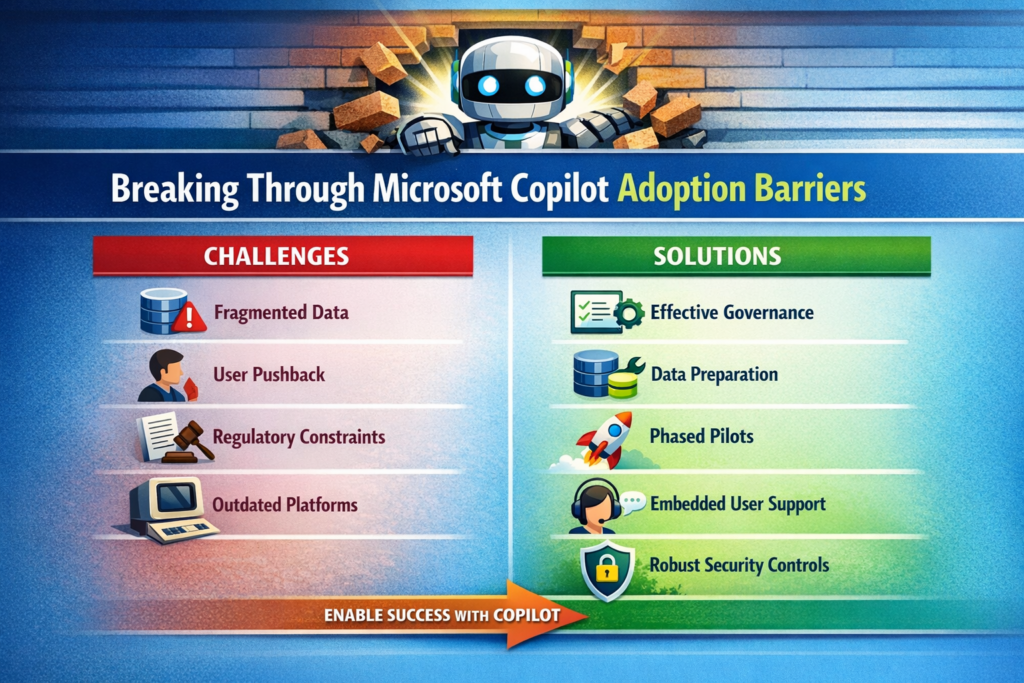
Copilot’s intelligence is only as good as the data you feed it. Disorganized SharePoint sites, inconsistent metadata and misaligned permissions will produce mediocre results and can expose sensitive information. Before rolling anything out, audit your content repositories and your Microsoft Entra ID configuration. If you still have an army of shared mailboxes or mysterious “Everyone” groups, fix those first.
Trade‑off: Cleaning up data and permissions isn’t glamorous or quick. It competes with feature development and sometimes uncovers political landmines. But skipping it means your AI assistant will look incompetent. You wouldn’t let a developer ship code before setting up version control; don’t expect an AI to deliver value without proper data plumbing.
2. Organizational Resistance — Not Everyone Loves Change
Users already suffer from change fatigue. Another tool promising to “transform productivity” can invite eye rolls. Leaders may also fear the unknown implications of AI on privacy and compliance. Communicate realistic benefits, involve legal and risk teams early, and tailor use cases to each department’s pain points. Don’t leave adoption to chance; treat it like any other major software rollout with change management built in.
Trade‑off: Over‑communicating can slow momentum, but silence breeds mistrust. Strike a balance by sharing concrete use cases—”we’re automating monthly financial summaries”—instead of vague promises.
3. Fragmented Systems — The API Problem
Copilot relies on Microsoft Graph connectors to pull data from third‑party platforms and on‑premises systems. If your CRM, HR and support systems aren’t connected, Copilot sees nothing. Technical teams need to establish integrations, configure Graph connectors and ensure indexing performance. Otherwise, the AI will provide incomplete answers or stall while waiting for data.
Trade‑off: Integration efforts take time and can reveal messy legacy dependencies. Resist the temptation to “pilot only in the Microsoft world.” Your users don’t live in one tool either; your AI shouldn’t.
4. Process and Governance Gaps — Who Owns This Thing?
Rolling out Copilot without defined ownership results in pockets of adoption and inconsistent configurations. Traditional one‑time training sessions don’t stick. Without continuous support, users revert to old habits. You need a central task force and an ongoing governance framework that includes IT, compliance, HR and business units. Set policies for role‑based access, monitor for AI misuse and create escalation paths.
Trade‑off: Governance can become bureaucratic if left unchecked. Keep it lightweight and pragmatic—focus on guardrails, not endless committees.
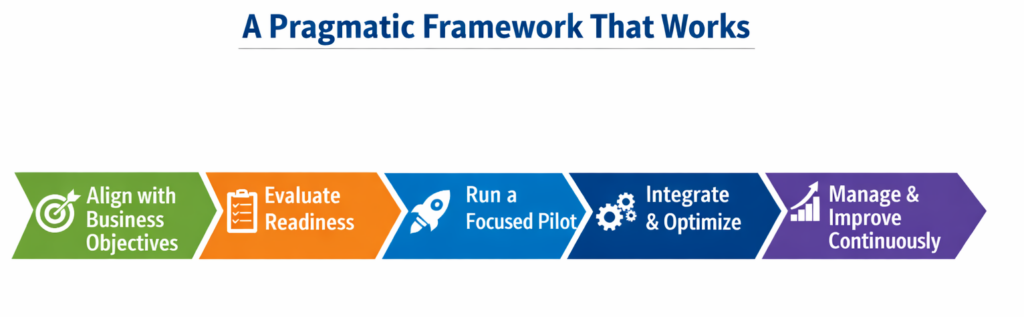
A Pragmatic Framework That Works
Step 1 — Align With Real Business Goals
Identify clear workflows where Copilot can generate measurable improvements: automating quarterly finance reports, drafting standardized contract clauses or summarizing customer support calls. Establish success metrics before rollout—reduced cycle times, fewer manual errors or higher employee satisfaction. Tie adoption to existing digital transformation initiatives rather than treating it as a side project.
Step 2 — Assess Enterprise Readiness
Run a technical audit of your Microsoft 365 tenant: content organization, permission hygiene, and Graph connector configuration. Parallel this with an organizational readiness assessment to gauge AI literacy and identify champions who will lead by example. If your environment isn’t ready, delay the rollout rather than risk a poor first impression.
Step 3 — Pilot, Don’t Boil the Ocean
Select pilot groups with well‑defined processes and clean data. Collect detailed feedback on user experience and productivity impacts. Use these insights to refine training materials and technical configurations. A phased rollout based on pilot results reduces risk and builds momentum.
Step 4 — Integrate and Optimize
Set up Graph connectors to integrate external systems like Salesforce or ServiceNow. Optimize indexing, search relevance and latency by monitoring Graph telemetry and tuning performance. Don’t treat performance tuning as an afterthought; delays and irrelevant results erode user trust faster than any licensing cost.
Step 5 — Invest in Continuous Change Management
One‑and‑done training doesn’t work. Provide in‑app, contextual guidance so users learn while they work. Build a champion network to share best practices and offer peer support. HR and training teams should create role‑specific AI literacy programs that address fears about job security and show how Copilot augments rather than replaces their work.
Step 6 — Measure and Iterate
Define key performance indicators beyond license activation: track actual usage, time saved on tasks, and user satisfaction. Establish a baseline before adoption, then compare post‑rollout metrics to quantify improvements. Use analytics to find underutilized features and adjust training or workflows accordingly. Continuous measurement and feedback loops turn adoption into an evolving practice rather than a one‑time event.
What I’ve Learned From the Trenches
- Data quality is non‑negotiable. You can’t “train the AI harder” to fix poor metadata or broken permission models. Invest early in cleaning up your SharePoint and Teams structures.
- Licensing is an operational, not just financial decision. Copilot is an add‑on to Microsoft 365 E3/E5. Start with pilot groups and plan for scaling costs, including support and training.
- Don’t underestimate performance tuning. Large tenants with millions of documents will encounter search latency and ranking issues. Monitoring Graph telemetry should be part of your daily operations.
- AI adoption is a cultural change. IT can configure connectors and licenses, but without HR and change management leading the human side, adoption stalls.
- Governance isn’t glamorous, but it’s essential. Set clear policies for AI usage, auditing and risk management early. It will keep regulators happy and executives calm when the first misuse incident occurs.
Recommendations
- Appoint a cross‑functional adoption task force. Bring together IT, compliance, HR and business unit leaders to coordinate strategy and maintain accountability.
- Prioritize high‑value use cases for pilots. Start where data is clean and business impact is obvious. Expand only after demonstrating clear wins.
- Leverage in‑app training tools and champion networks. Continuous guidance and peer advocacy accelerate adoption more than any slide deck.
- Treat performance metrics as first‑class citizens. Use telemetry from the Microsoft 365 Admin Center and Graph usage dashboards to monitor adoption and refine configurations.
- Plan licensing and support budgets holistically. Factor in the cost of training, change management and security monitoring alongside per‑user license fees.
Closing Takeaway
Rolling out Microsoft Copilot isn’t about pressing a button; it’s about engineering your environment—both technical and human—to harness AI effectively. Adopted thoughtfully, Copilot can free your teams from drudgery, accelerate decision‑making and spark innovation. Neglected, it becomes another underused line item on your cloud bill. Don’t settle for another half‑baked rollout. Address data readiness, design a measured adoption plan, and invest in continuous enablement. That’s how you turn generative AI from marketing hype into sustained productivity gains.
Thank you for stopping by. ✌️